How-to guides
Read flows and the map
Follow one chain of calls in Flows, and see how resources connect on the Map.
Read a flow
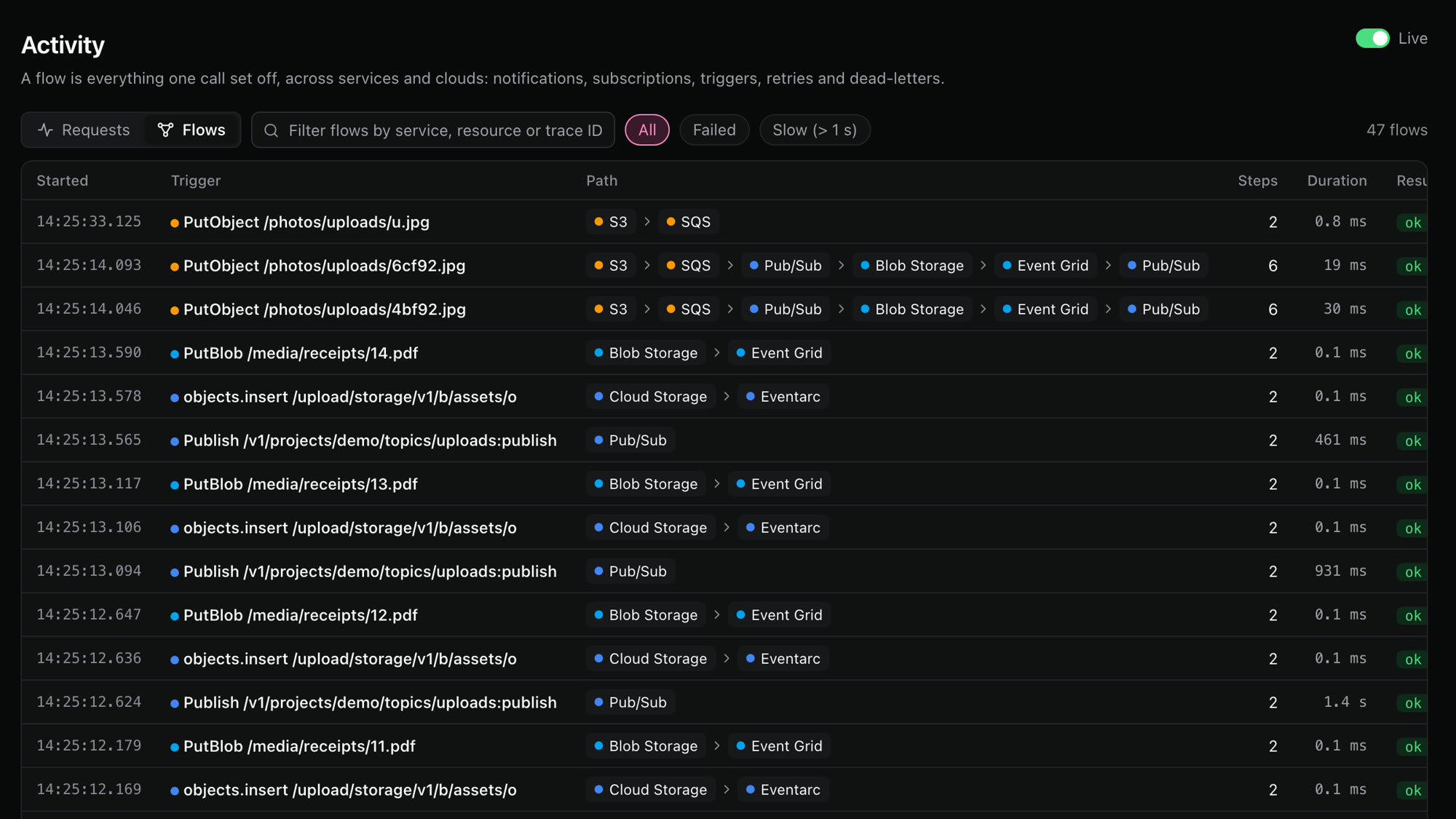
- Open Activity and choose Flows. Each row shows the call that started the flow, the path it took, the number of steps and the duration.
- Filter the list with the chips All, Failed and Slow (over one second). The search box takes a service, a resource name or a trace ID.
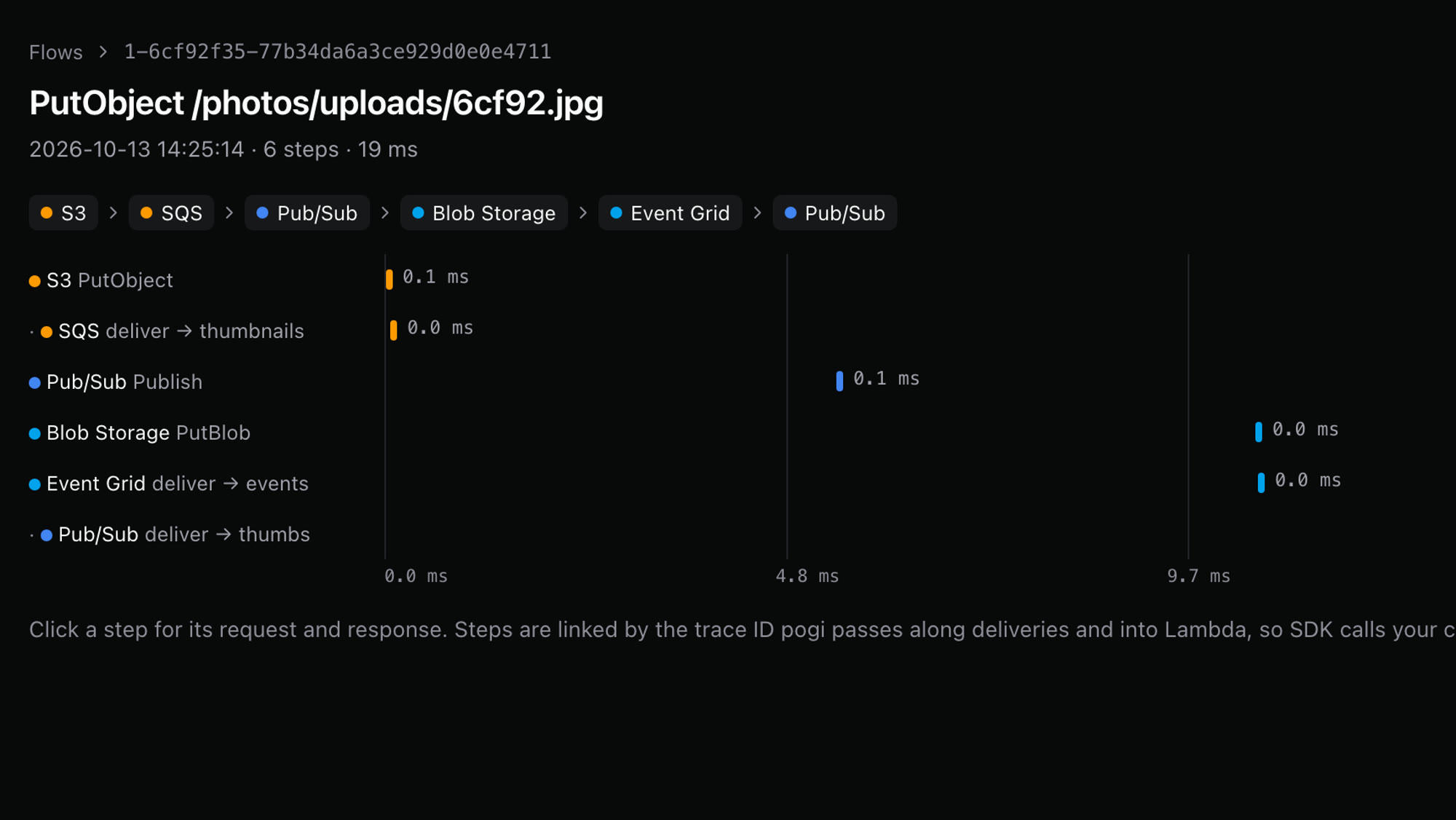
- Click a row to open its timeline. Steps that pogi did itself sit between the requests: handing a message to a queue, running a function, moving a message to a dead-letter queue.
- Click any step to open its request and response.
Read the Map
The Map shows resources as boxes, grouped by cloud, with a line for each connection.
| Line | Meaning |
|---|---|
| Solid | A link the service reports from its own settings, such as an S3 bucket notification, an SNS subscription or an event source mapping. |
| Dotted | A delivery pogi saw at run time, in the last 15 minutes. |
| Red dashed | A dead-letter route: a message moved to a dead-letter queue. |
| Pink dot | A message that is moving right now. |
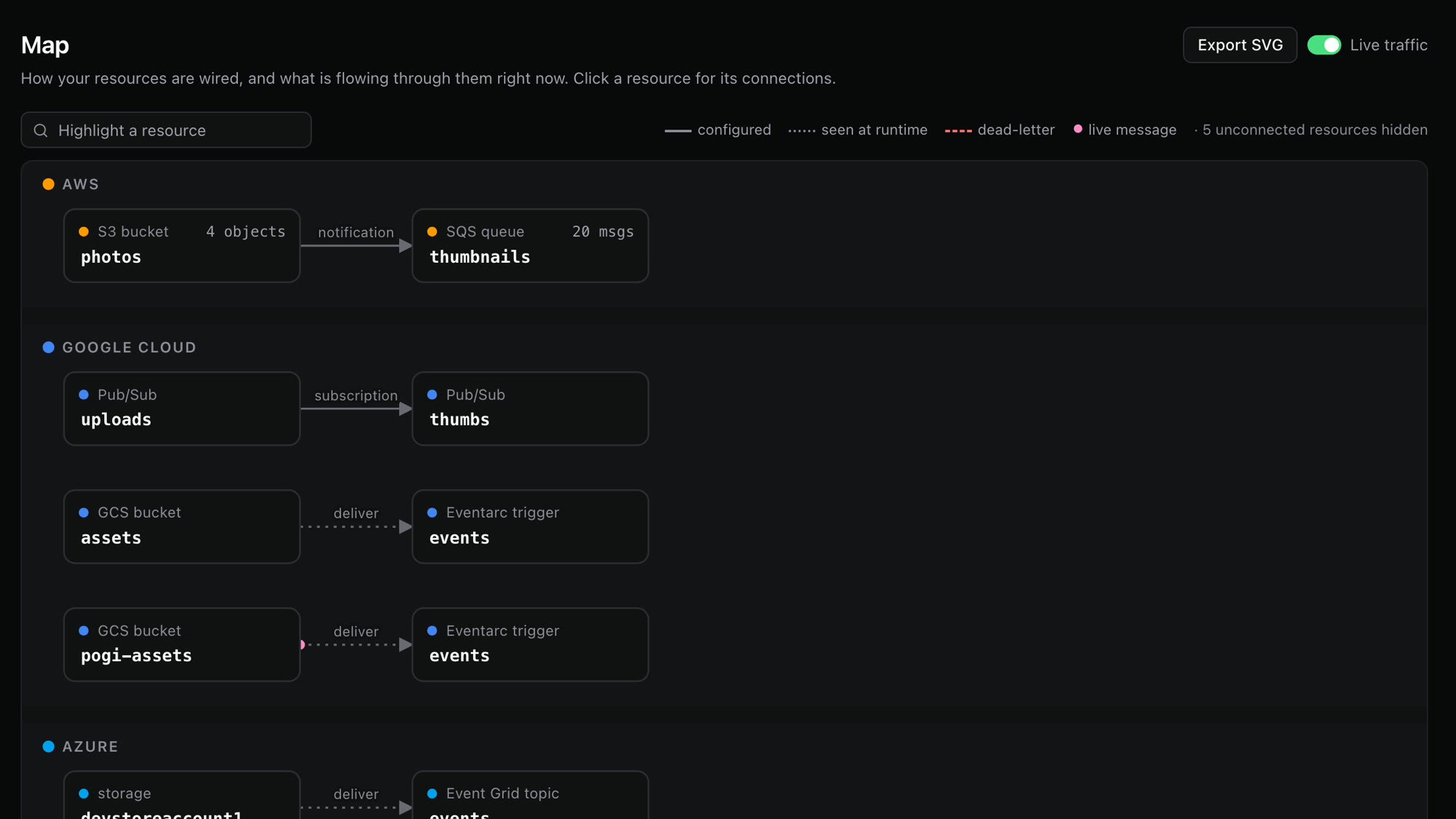
- Click a resource to see what goes in and out of it, and the recent flows that touch it.
- Choose Export SVG to save the picture.
- Use the search box to highlight one resource.